Industrial product identification is critical for traceability, compliance, and brand protection. From expiry dates to…
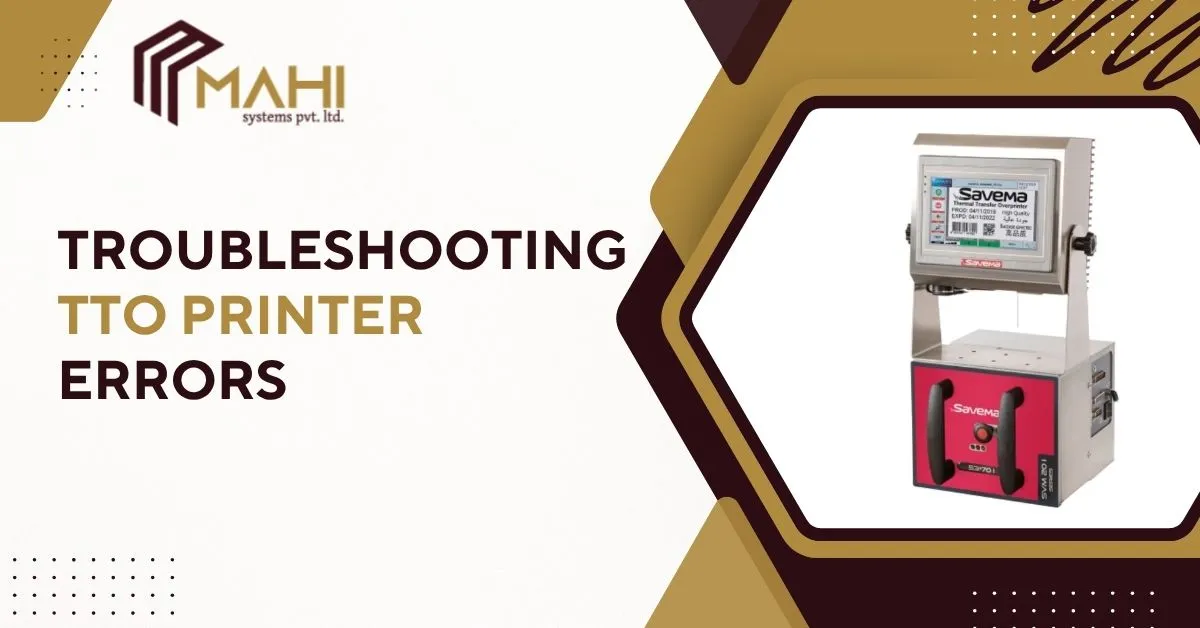
Thermal Transfer Overprinters (TTO Printers) are essential for reliable, high-quality coding and labeling in packaging lines — but like any industrial device they can throw errors. This guide walks you step-by-step through diagnosing and fixing the most common TTO printer errors, improving print quality, and preventing repeat problems.
TTO Printers are widely used across packaging industries for crisp, durable prints on flexible films and labels.
In this post you’ll learn why errors happen, how to fix them quickly, and how to keep your TTO printer running smoothly to reduce downtime.
Understanding How TTO Printers Work
The TTO Printers are precision devices that transfer ink from a thermal ribbon to the substrate using a heated printhead; understanding the key parts helps with troubleshooting.
Why that matters for troubleshooting
- Printhead temperature and pressure affect quality.
- Ribbon alignment and tension determine whether the ribbon feeds or jams.
- Sensors tell the printer where the ribbon and labels are — if they misread, errors occur.
- Communication and driver issues cause “no print” or garbled data.
Common TTO Printer Error Codes & What They Mean
The TTO Printers are widely used in manufacturing and packaging lines, so knowing common error messages helps technicians act fast.
| Error Code / Message | Possible Cause | Quick Fix / Solution |
| Ribbon Out | Ribbon empty, ribbon end sensor dirty or misaligned, wrong ribbon type | Replace ribbon, clean/realign ribbon sensor, confirm ribbon type |
| Ribbon Jam / Ribbon Feed Error | Ribbon misthreaded, tension too loose/tight, damaged ribbon | Rethread ribbon per manual, adjust tension, replace damaged ribbon |
| Printhead Overheat | Continuous high-speed printing, clogged vents, failing thermistor | Pause printing to cool, clean vents/printhead, check thermistor and firmware |
| Print Quality Error / Faded Print | Dirty printhead, wrong darkness/speed settings, low ribbon quality | Clean printhead, increase darkness or reduce speed, use quality ribbon |
| Media Sensor Error | Label or film not detected, sensor misaligned, dirty sensor | Check media path, clean sensor, recalibrate sensor or perform media teach |
| Communication Error / No Connection | Faulty USB/serial/ethernet cable, corrupt driver, wrong port settings | Check/replace cables, restart devices, reinstall driver, verify port settings |
| Head Open / Cover Open | Safety switch open or misaligned | Close cover fully, check door switch and latch |
| Motor Stall / Movement Error | Blocked rollers, worn drive motor or gear | Inspect path, remove obstructions, service motor/gear if needed |
Step-by-Step Troubleshooting Guide
The TTO Printers are built for speed, but systematic troubleshooting saves time and reduces repeat issues. Below are practical steps ordered from quickest checks to advanced interventions.
Basic Checks Before You Start
TTO Printers are often taken offline by simple problems—check these first.
- Power & connections: Ensure the printer is powered and switches are on. Confirm cables (power, data) are seated correctly.
- Restart: Power cycle the printer and the host PC/controller. This often clears transient communication errors.
- Drivers & software: Verify printer drivers and label software are configured for your model and correct port.
- Error messages: Note exact error wording and code — it speeds diagnosis.
Fixing Common Mechanical Errors
TTO Printers are mechanical; ribbon and media routing are frequent culprits.
Ribbon misfeeds / jams:
-
- Open cover and remove ribbon.
- Inspect for tears, wrinkles, or adhesive build-up.
- Rethread following the manufacturer diagram; ensure correct ribbon orientation (print side).
- Adjust ribbon tension as recommended.
Printhead Pressure & Alignment:
- Too much pressure can gouge film; too little causes faint prints.
- Follow the manual to set printhead pressure and do a test print.
Cleaning:
- Clean the printhead with isopropyl alcohol and lint-free swabs after every ribbon change.
- Clean rollers and sensors to prevent misreads and jams.
Software & Communication Troubleshooting
When mechanical checks pass, look at data and settings.
- Check cable type & connections: For network printers, confirm IP address and network stability. For USB/serial, try a different cable/port.
- Driver & firmware: Keep drivers and firmware up to date. If a new firmware introduced issues, roll back to stable release until resolved.
- Label templates & data: Ensure your label template matches media size and that data fields aren’t too long (causing buffer overflows).
- Printer logs: Many TTO printers keep logs; review them for repeated errors or patterns.
Advanced Troubleshooting
If basic steps fail, escalate carefully.
- Sensor calibration / media teach: Perform the sensor-teach routine with the actual film/labels you use. This ensures accurate detection.
- Thermistor & heating issues: Use diagnostics (if available) to check printhead temperature sensors. A failing thermistor may cause false overheat errors.
- Replace parts when needed: Printheads and controller boards wear out. Replace only after ruling out software and consumable causes.
- When to escalate: If errors persist after mechanical, sensor, firmware, and cable checks, contact qualified service technicians.
Preventive Maintenance Tips for TTO Printers
The TTO Printers are reliable when maintained—small routines avoid big downtime.
- Daily / per ribbon change: Clean printhead and check ribbon path.
- Weekly: Inspect rollers, clean sensors, check platen for adhesive or debris.
- Monthly: Run calibration routines and inspect cable integrity.
- Consumables: Use manufacturer-recommended ribbons and media. Cheap ribbons cause contamination and printhead wear.
- Environment: Keep printers in a dust-reduced, temperature-stable area; extreme humidity or heat affects ribbon behavior and print quality.
- Firmware & drivers: Maintain an update schedule—test firmware updates on a single printer before fleet rollout.
Best Practices to Improve Print Quality
The TTO Printers are precise—small setup changes lead to big improvements.
- Match ribbon to substrate: Wax ribbons for paper, resin or wax-resin for films. The right ribbon reduces smearing and fading.
- Set correct speed & darkness: Balance speed and darkness to avoid overheating or insufficient transfer. Run a test matrix to find optimal settings.
- Keep printhead clean: Even microscopic debris causes lines or spotty prints. Clean after every ribbon change.
- Label design: Avoid very fine fonts or overly small barcodes at high speeds—use appropriate barcode size and contrast.
- Quality control: Implement a quick visual check or scanner test every shift to catch issues early.
Don’t let printer downtime slow your production.
Contact us now for professional TTO printer repair and maintenance help.
When to Contact Technical Support
TTO Printers are robust, but some situations need pros.
Contact support if:
- Repeated electronic errors (controller faults) persist after basic checks.
- The printhead or thermistor fails diagnostics.
- Mechanical replacement (gears, motors) is required or if warranty service is due.
- You need help interpreting error codes or updating firmware safely.
Model number, serial number, exact error text/code, photos of ribbon/media path, firmware and driver versions, and recent changes (new ribbon type, new label size, etc.).
Frequently Asked Questions
TTO stands for Thermal Transfer Overprinter, a device that uses heat to transfer ink from a ribbon onto labels or flexible packaging for durable, high-contrast printing.
If “Ribbon Out” persists after replacement, check the ribbon sensor for dirt or misalignment, confirm the ribbon is threaded correctly, and ensure the ribbon core is compatible with the sensor type used by your printer.
First, clean the printhead and rollers, then verify ribbon type, tension, and darkness/speed settings. If issues persist, check for a worn printhead or improper media handling.
Clean the printhead after every ribbon change and perform a more thorough cleaning of rollers and sensors weekly or according to printer usage intensity.
Yes — start by checking cables and network settings, restarting devices, and reinstalling drivers. If the printer still won’t communicate, check firmware compatibility and consult the printer log or support.
Conclusion
The TTO Printers deliver reliable, high-quality labelling when correctly set up and maintained. Most errors come from ribbon/media issues, dirty sensors/printheads, or simple communication problems — all fixable with a methodical approach. Use the checklist above, implement a cleaning schedule, and document recurring codes to minimize downtime. If issues persist after the steps in this guide, gather error code details and contact technical support.
Related Posts